Your plan, payment method, and invoices are all on one page.
Bupa Dental practices can pay through Coupa by purchase order, without a credit card.
- Incoming correspondence is unlimited on every plan. What changes between plans is how much you can send.
- The plans are Free, Standard, Plus, and Enterprise. The pricing page lists what each costs.
- Stripe, our payment provider, handles anything involving card details. Their page takes over while you’re on it, then you come back to Settings → Billing. Never put a full card number in a support message.
Steps
- Click your practice name at the bottom of the sidebar, then click Settings.
- Click Billing.
- To change plan, click Upgrade plan if you’re on Free or Adjust plan on any other plan, then choose a plan on the pricing page. Enterprise goes to an enquiry page instead of payment.
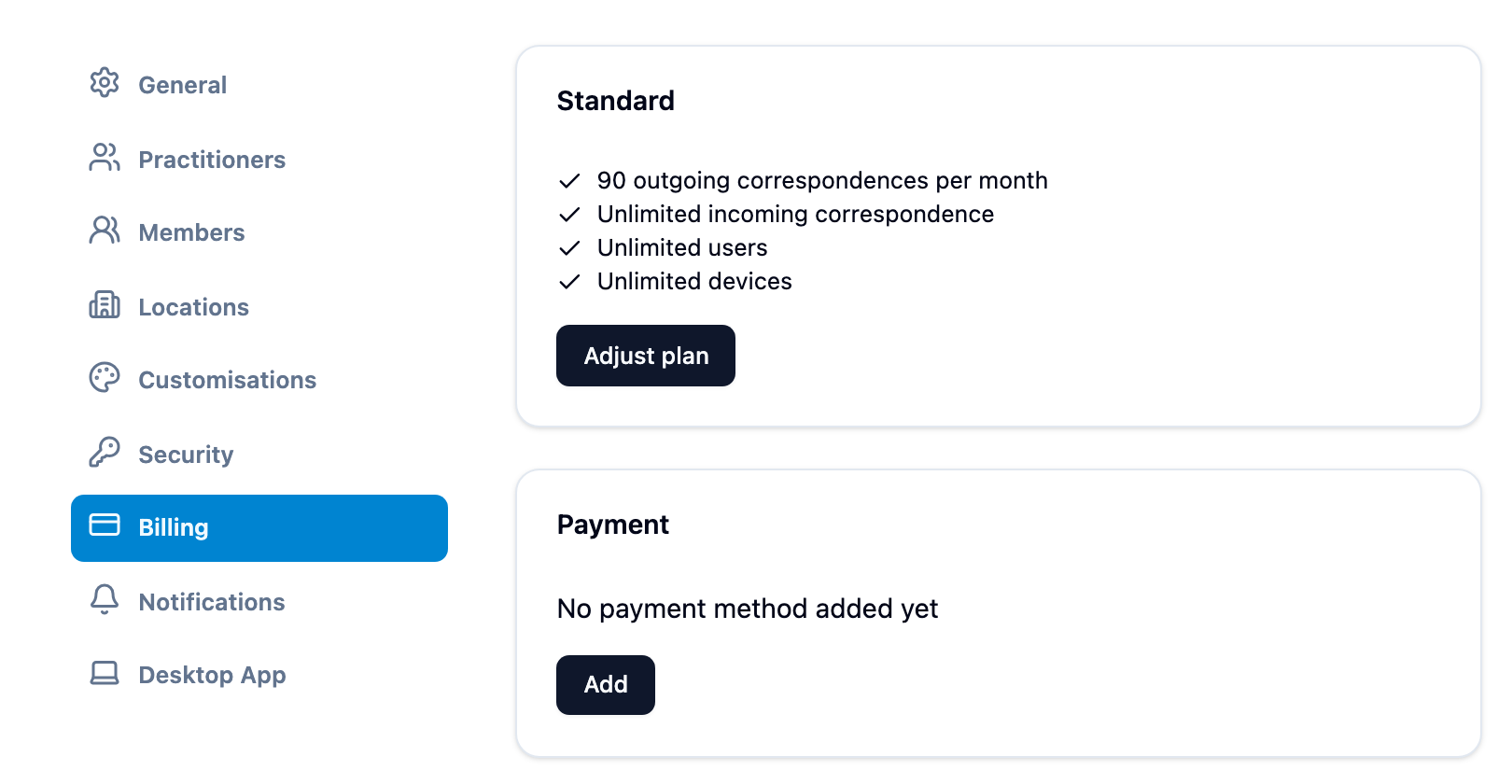
Under Payment, Add sets up a payment method (a card, Link or BECS Direct Debit) and Update replaces the one that’s there. Under Invoices, View opens a receipt to download or print.
When your plan is due to change at the end of the period you’ve paid for, for example after your saved cards are removed, the plan reads “Your current plan until 12 Nov 2026, when it changes to Free”. Click Keep and your plan name to cancel the change; you need a payment method saved first. Saving a card while you’re on Free or have a change coming opens a Card saved box, which offers the same choice or Choose a plan.
Bupa practices: pay through Coupa
A Bupa practice can pay yearly by purchase order through Bupa’s Coupa instead of by card. Pay through Bupa’s Coupa appears on Settings → Billing for anyone with the Billing permission, and Upgrade via Coupa in the sidebar and the upgrade prompts takes you there.
- Choose Standard or Plus. The card shows the prices with and without GST, and Coupa’s Write a request form filled in for that plan.
- Click Pay through Coupa. Your practice can keep sending for 45 days while Bupa approves the order. You can only choose once.
- In Coupa, go from the home page to Not sure? Let us guide you → Write a request, enter the boxed values (search Mediref for the supplier), then Add to Basket and Submit for Approval.
- Once Bupa approves, Coupa sends us the purchase order and we invoice it. When Coupa emails “Confirm receipt for Invoice”, confirm it so Bupa can pay.
During setup, a Bupa practice is offered Coupa first; Pay by card instead shows the usual plans.
During setup, Select plan is step 4 of the 5 steps, and Book demo talks it through with us first instead. Three days before your free sending trial ends, and again once it has, Mediref emails everyone with the Billing permission or organisation governance a link to choose a plan on Settings → Billing. Once the trial has ended, Restart trial in the sidebar can extend it by 7 days, opening a Trial Extended page with your new date.